Stops in order
Pick where the truck starts and each warehouse it stops at.
Trips and loading
The trip is the thing your business really runs on. So it is the thing the app is built around, from the first box you receive to the numbers when you close it.
A trip brings a truckload across the border in either direction. You open one before you start receiving, and from then on every package that comes in files into it by itself. There is no end of day where somebody sits down and assigns forty boxes to a manifest.
Loading is done with the phone camera. You print the truck's QR sheet once, scan it to say which unit you are working, then scan boxes one after another as they go up. The screen keeps a live count of what is loaded, what is still missing and what got set aside. And it catches problems while the box is still in your hands, not eleven hundred miles later. It will tell you that a box is not on this route and offer to add it, that it belongs to a different route, that it was already scanned, or that the label is one nobody recognizes.
Before the truck pulls out you can see the load grouped by destination state and city, so it goes on in more or less the order it will come off. Basically the truck gets packed the way the routes will run.
Every trip carries its own money too. Charged, collected, still pending, the expenses booked against it and the net, kept separately per currency so dollars and pesos never get mashed together at an invented exchange rate. If you go to close a trip without a single expense on it, the app stops and asks first, and offers you a quick fuel, tolls or customs entry right there, so your net never quietly ends up equal to your gross.
Trips stay editable while things move around. You can move packages from one trip to another, close a trip early after it tells you what is still open, and reopen one when something comes back. Closed trips get archived with their photos, and how long that archive is kept depends on your plan.
New
Plan a trip with up to 10 destination warehouses, plus its starting hub. See each warehouse’s state and country when choosing stops. A full street address is optional. At each stop, check the boxes that came off and open local routes right there. The rest stay on the truck for the next stop.
Turn on warehouse stops in General settings. Trips with one destination work as before.
Pick where the truck starts and each warehouse it stops at.
Receive the boxes unloaded at each stop. Nothing is counted until someone checks it.
Drivers in Houston can start while the truck drives on to Las Vegas.
Save the stops as a template for the next trip, on web or mobile.
Give the trip a name and a departure date. Anything you receive from now on lands in it without anybody assigning it.
Scan the truck's QR sheet once, then scan boxes continuously as they go in. Loaded, remaining and set aside tally on the screen while you work.
One tap moves the whole load to in transit. The trip crosses the border as a unit and shows up on the owner dashboard as a truck in motion. The trip page tracker moves to the next step, folds finished steps into one count and shows when the last one happened.
At each stop, check the boxes that came off and open local routes. When the trip ends, close it with its expenses and photos.
The box is real but nobody put it on this run. The screen offers to assign it and load it in the same tap.
It belongs on a different truck, or somebody already scanned it. Either way you hear about it before it goes up.
The QR is not one of yours or the sticker got mangled. The scan is refused instead of quietly counting a box you do not have.
Yes. Turn on warehouse stops in General settings and pick the stops in order. Before loading, assign each box to a truck, because boxes load only onto their assigned truck. With one truck it takes one tap. At each stop you check the boxes that came off and open that warehouse's routes. A stop with nothing to unload and no routes goes straight to Continue. The rest stay on the truck for the next stop.
Yes, with a short reason. The plan locks when the truck leaves, so every change after that keeps a note of who made it and why.
No. Trips with one destination work as before. If you turn warehouse stops off later, trips that already have stops keep them. You set up each warehouse's address, the cities it serves and the place name customers see on the Warehouse page.
The same trip page layout as a trip with stops. One progress card shows the trip's stage, its package and route counts, and the one next action, such as Mark departed. Download records, Close trip and, before the truck leaves, Delete trip are under More actions. No warehouses are needed.
Yes, on each trip. When you create it, pick when drivers can start: right away, when the truck leaves, when it arrives or when you open the routes yourself. It starts with your company default. With warehouse stops, a warehouse's routes can open by themselves once all their boxes are received.
Yes. When you create or edit a trip, Auto-create routes from fixed routes can run when the truck leaves or when it arrives, or stay off. This is separate from when drivers can start. At that moment, each active fixed route with a driver and cities becomes a route with its packages. It runs once, so changing it afterwards adds no routes. The form lists the fixed routes that are ready and links to Fixed routes when none are.
No. Without warehouses, the Warehouse page simply groups waiting packages by state and city, with Assign all for a state and Assign to route for a city. Sorting warehouses, warehouse stops and inventory only appear once you set them up.
Warehouse, then Manage warehouses. One table shows every warehouse with its state and country, the cities it serves, what customers see and how many boxes are on hand. Open one to edit it on its own page. Customer tracking says which warehouse place a box reached. All undelivered lists every package that isn't finished yet, including ones on a route or a truck, on the web and in the mobile app. You can also create a warehouse right where you pick one: on a package, a trip or a new route.
A trip is one truckload crossing the border, from the day you start filling it to the day you close the books on it. It holds the packages, the route or routes built from it at the destination, the expenses booked against it and its own profit and loss. Because the packages belong to the trip, moving the trip moves all of them. With warehouse stops, each package comes off at its own stop.
No. Whatever trip is open and loading is the one new packages file into, so intake and the manifest stay in step by themselves. You only move a package by hand when it misses the truck or gets bumped, and there is a bulk move for when that happens to a whole group at once.
A phone with a camera and the truck's printed QR sheet. You scan the sheet once to say which unit you are on, then hold the camera over each box label as it goes up. Nothing else to buy, no scanner gun and no app to install, because it all runs in the browser.
Yes, and it will tell you what is still open before you do, so closing is a decision and not an accident. A trip with warehouse stops closes once every box has been checked at its stop. You can reopen a closed trip if something comes back or a number needs fixing, and it goes back to the stage it was really at rather than starting over.
Each trip carries its own numbers: what you charged, what you have collected, what is still pending, the expenses booked against it and the net, split by currency so dollars and pesos stay apart. If you try to close a trip with no expenses at all, it stops you and offers a quick entry for fuel, tolls or customs, because a trip with no costs on it is almost always a trip where somebody forgot.
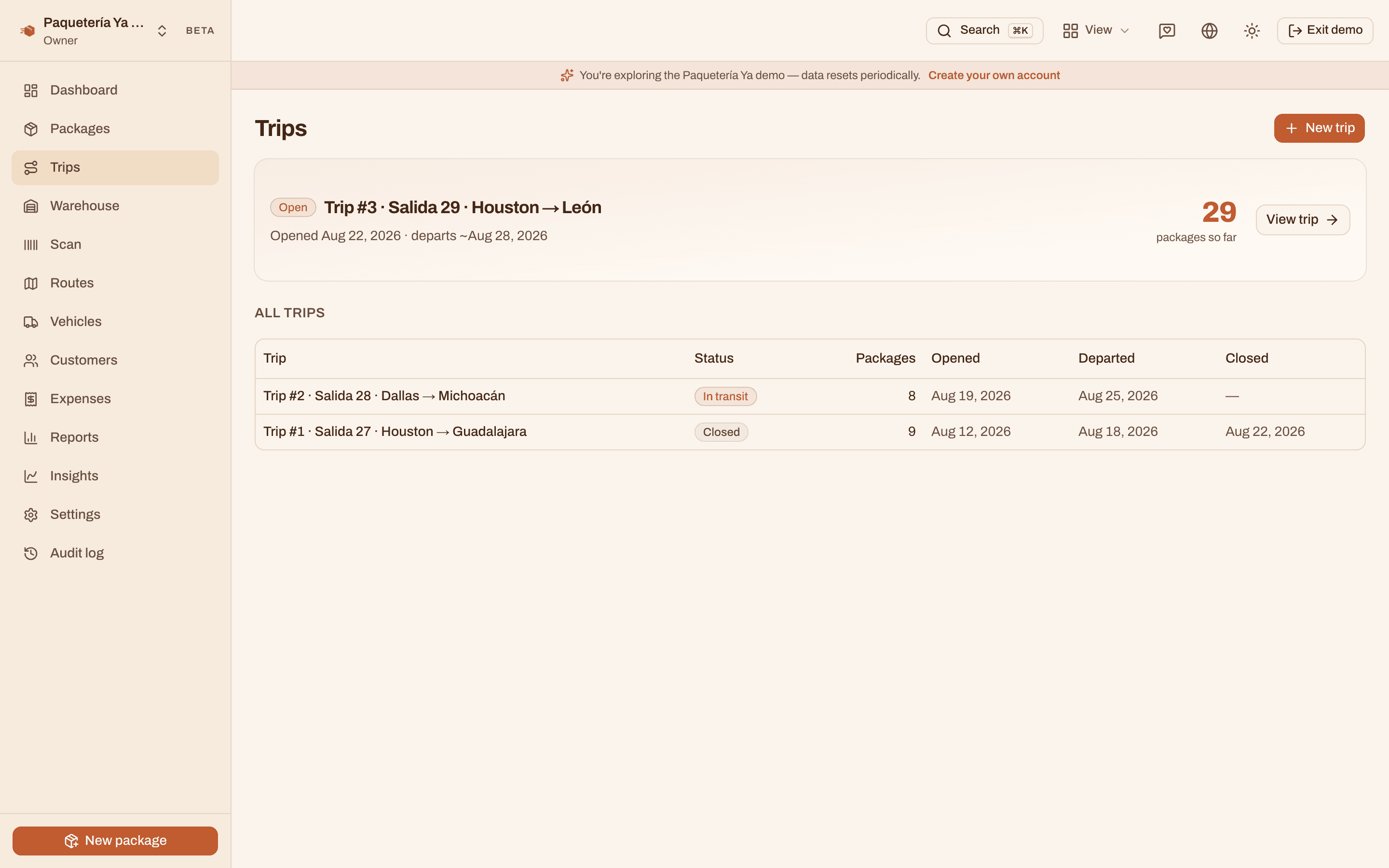
The demo has a trip still loading, one out crossing the border and one already closed with its numbers done.
Open the live demo