Real road distance
Stop order comes from the actual road network, so the run makes sense to somebody behind a wheel and not just to a map.
Routes and drivers
Once the truck is at the hub you make the routes on the ground, in the order the roads actually run. Then each driver opens their own phone and sees only their stops.
Start in the trip’s Routes tab to review fixed routes, delivery routes grouped by driver and packages still without a route. Preview routes from the drivers already saved on packages, then create the eligible routes and handle packages that still need a driver in the same place.
Stop order is worked out against the road network, not by drawing straight lines between pins. A straight line will happily send a driver across a canal or up a hill with no road on it. Real road distance puts the stops in the order somebody can actually drive, which is the difference between a nine stop morning and a nine stop day.
Every route shows on a live map with all its stops on it, and you can open any single stop to see the address, the customer, what is in the box and the balance still owed. The office sees the same map the driver sees, updating as the run goes.
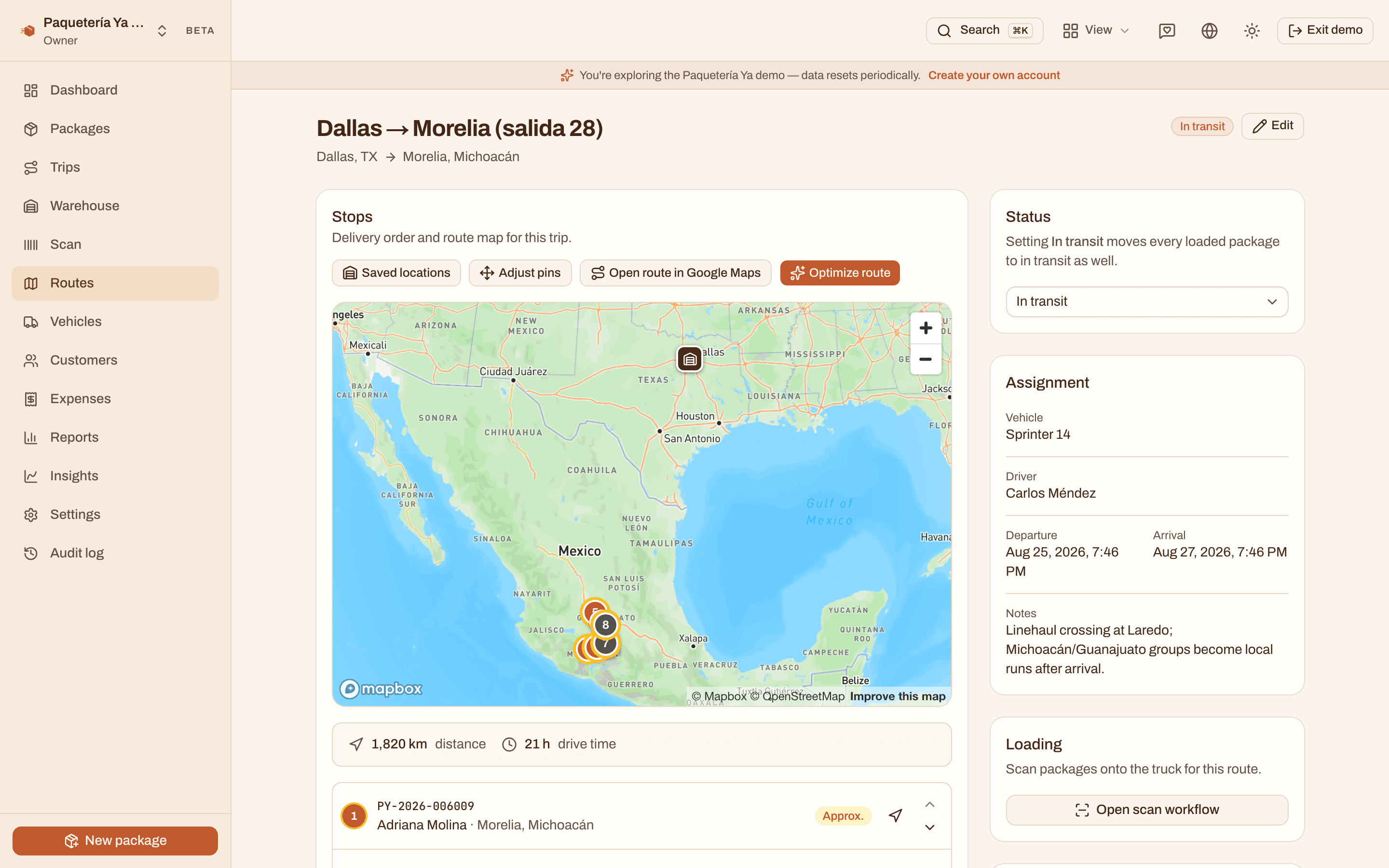
Drivers get their own screen, made for a phone. No packages list, no reports, no settings, just their route and their stops in order. When it is time to move, one tap sends the whole multi stop route into Google Maps for turn by turn, and any single stop opens in Google Maps, Waze or Apple Maps, whichever one that driver already uses. And before pulling up, one more tap opens a WhatsApp chat with the recipient to make sure somebody is home.
You do not need a separate account to take a run either. Any team member can be marked as also a driver, so the owner or the office person can grab a route on a busy Saturday and switch back afterwards. Permissions decide the rest, therefore a driver only ever sees their own stops and never the whole company.
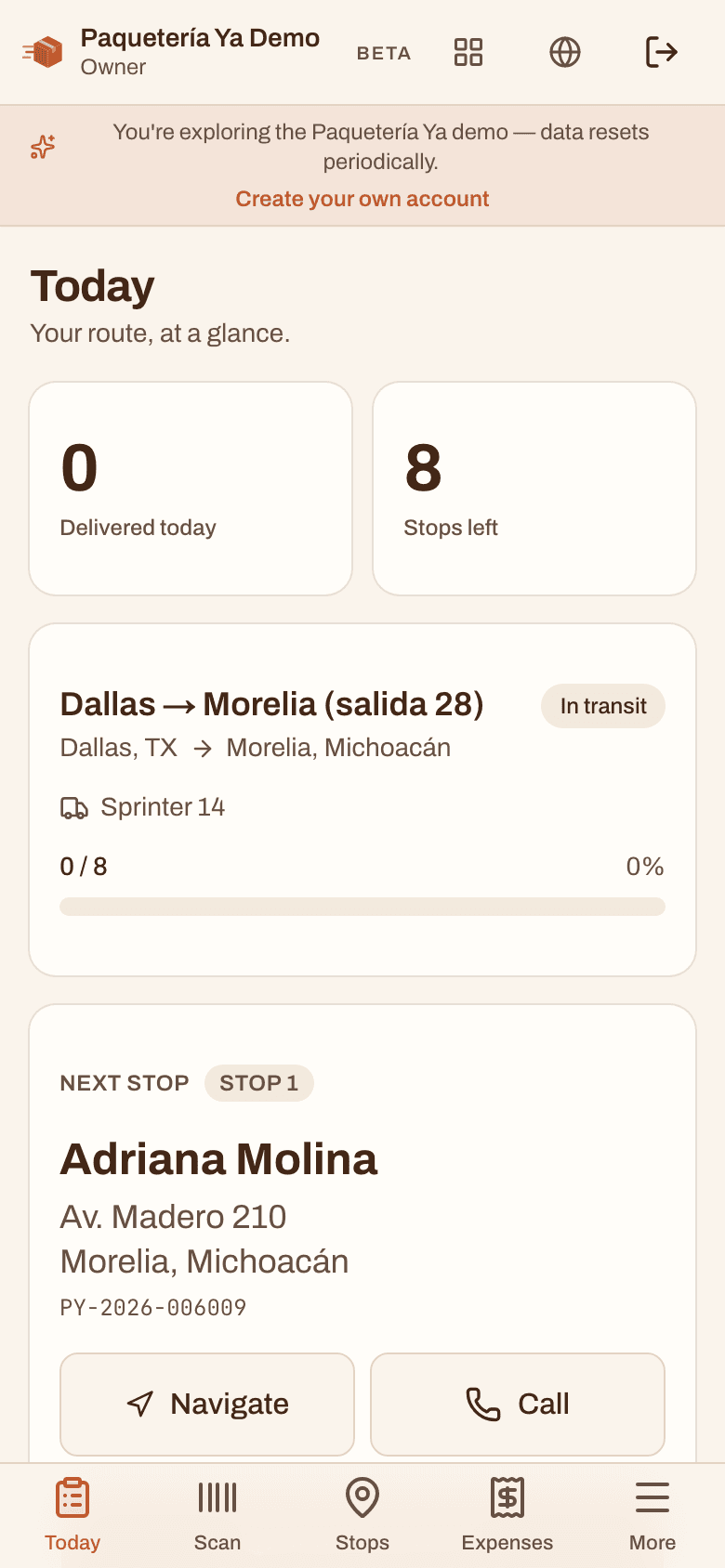
Open the trip’s Routes tab, review fixed routes and driver groups, and preview which packages can be added. Packages without a driver stay visible so you can assign one before creating their routes.
Give the route to anyone on the team who is marked as also a driver. They see it the second it is assigned, on whatever phone they already carry.
The driver works down their stop list. Any stop opens in Google Maps, Waze or Apple Maps, and the whole route can go into Google Maps at once.
A photo and a GPS point get captured at handoff, the stop closes, and the office and the customer both see it right away.
Stop order comes from the actual road network, so the run makes sense to somebody behind a wheel and not just to a map.
Google Maps, Waze or Apple Maps for a single stop, and the full multi stop route into Google Maps when it is time to go.
One tap opens WhatsApp with the recipient from the stop itself, so you find out they stepped out before you park.
The trip’s Routes tab shows unrouted packages alongside routes grouped by driver. You can review fixed routes, assign missing drivers and preview route creation there. Available actions depend on your permissions and the trip and route status. Visibility explanations point to Permissions when a driver's role cannot view routes. If a large batch pauses, Continue creating routes resumes the unfinished work even when the preview shows no waiting packages. Large-trip counts stay marked as previews when more routes may remain.
It is worked out against the real road network rather than straight line distance between pins, so the order is one a driver can actually drive. You can still move a stop by hand when you know something the map does not, like a street that is closed or a customer who is only home after six.
No. The driver signs in on their own phone in a browser and gets a screen made for that, showing only their route and their stops. There is nothing to install, no hardware to buy, and navigation hands off to whichever map app is already on the phone.
Yes. Any team member can be marked as also a driver, so an owner or an office person can pick up a run without a second account and switch back to the office view afterwards. That flag is on by default for new members and you turn it off for the people who should never get a route.
No. Drivers are scoped to their own routes, so the stops on their run are what they get, and the money and settings screens are not theirs to open. Twenty one permissions decide the rest, and an owner can preview the app exactly as a driver sees it before handing over access.
Yes. The search in the driver's top bar looks through every package on their open routes, routes they help on and packages assigned to them, by name, part of the tracking number, street, the last digits of a phone, the sender or what is in the box. Tapping a result opens that stop ready to deliver. A Recent list keeps the packages they opened in the last week, even after the route is finished, so a call back is one tap away. Search never reaches other drivers' packages, and on a locked route it only matches what the driver can already see.
Yes. In the staff app, a trip shows its routes grouped by driver, how many of each driver's routes are still waiting to leave and the packages not on a route yet, with how many already have a saved driver. Fixed routes open their own page with the cities they cover and what is waiting for them on an open trip.
Yes. From a trip, a fixed route or Routes in the staff app, Create routes by driver previews where each driver's packages go: the route they fit or a new one, and whether packages outside the driver's usual cities join that route or go on a separate one. Nothing is saved until you confirm. If the packages changed while you were looking, it asks you to review again, and if the connection drops you can continue where it left off without duplicates.
Yes, if your role can manage routes. When a driver has two or more routes still waiting to leave, the trip's Routes section offers Merge routes. You keep one route, check the ones to fold into it, and their stops move over in the same order. Paused routes have to be resumed first. A merge takes up to 50 routes or 500 packages at once, the route you keep can't have left yet, and trips with warehouse stops are managed from their stops instead.
The demo has routes out on the road with their stops in order, so you can see both the office map and the driver screen.
Open the live demo